
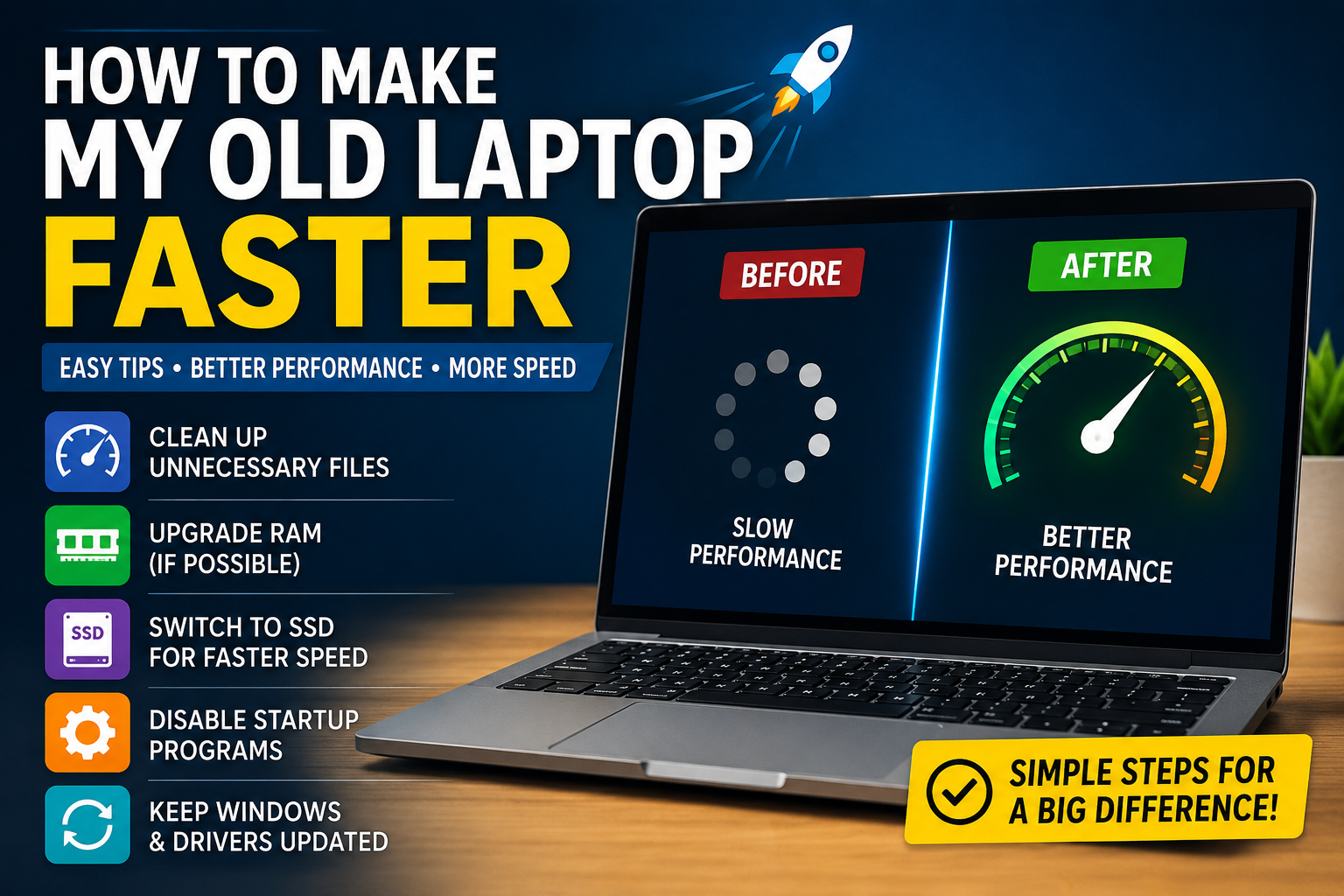
If you’ve been wondering how to make my old laptop faster, you’re not alone. An old laptop can become slow for many reasons. It may take a long time to start, open programs slowly, freeze while browsing, or struggle with simple tasks. The good news is that you don’t always need to buy a new computer. In many cases, a few simple changes can make a noticeable difference.
Learning how to make my old laptop faster can save money and help you get more years of use from your device. Some solutions are completely free, while others involve affordable hardware upgrades. You can clean unnecessary files, remove unwanted programs, reduce startup apps, update the operating system, add more memory, or replace an old hard drive with a faster SSD.
Well, here’s the thing: an old laptop doesn’t necessarily have to stay slow forever. With a little care and the right improvements, it can become much more useful for browsing, writing, studying, office work, and everyday tasks.
This guide explains practical and safe ways to improve your laptop’s speed in simple language.
Why an Old Laptop Becomes Slow Over Time
Before trying to fix the problem, it’s helpful to understand why laptops become slower.
A computer has several important parts working together. These include the processor, memory, storage drive, operating system, cooling system, and software. As time passes, these parts may become less efficient, especially when modern programs require more resources.
Your laptop may also collect unnecessary files and applications over the years. Some programs may start automatically whenever you turn on the computer. Others may continue running in the background without you even realizing it.
Common reasons for a slow laptop include:
- Too many startup programs
- Not enough RAM
- An old mechanical hard drive
- Low free storage space
- Too many browser tabs
- Outdated software
- Unwanted applications
- Malware or harmful software
- Overheating
- Dust blocking the cooling system
- Too many background processes
Sometimes the problem is simple. Other times, the laptop may need a hardware upgrade. The key is to identify the biggest cause instead of changing everything blindly.
Check What Is Making Your Laptop Slow
The first step is to find out what is using your laptop’s resources.
On a Windows computer, Task Manager can show which programs are using a large amount of processor power, memory, or storage. You can usually open it by pressing Ctrl + Shift + Esc.
Look for programs that use unusually high amounts of resources. For example, if one application is using most of your memory even when you aren’t actively using it, that program could be affecting performance.
Pay attention to these areas:
| Laptop Resource | What It Does | Possible Problem |
|---|---|---|
| Processor | Handles tasks and calculations | High usage can cause lag |
| RAM | Helps programs run smoothly | Too little RAM causes slowdowns |
| Storage | Stores files and programs | A full or slow drive reduces performance |
| Startup Apps | Launch when the laptop starts | Too many can slow boot time |
| Temperature | Affects hardware performance | Excessive heat can reduce speed |
Don’t close important system processes unless you know what they do. If you’re unsure, search for the name of the program or ask a qualified technician.
Finding the real problem first can save you time. After all, why replace parts that aren’t causing the trouble?
Remove Programs You No Longer Use
One of the easiest ways to improve an old laptop is to uninstall unnecessary software.
Over time, many people install programs for one small task and then forget about them. These applications can take up storage space and may even run background services.
Review the programs installed on your laptop and ask yourself:
- Do I still use this?
- Is this program necessary?
- Does it start automatically?
- Is there a lighter alternative?
- Can I use a website instead of installing software?
Games, trial programs, old utilities, and duplicate applications are often good places to start.
However, be careful when removing software. Don’t uninstall hardware drivers or unknown system components just because their names look unfamiliar. If something appears important to Windows or your laptop manufacturer, leave it alone until you’ve confirmed what it does.
Removing clutter is a bit like cleaning a crowded room. The laptop suddenly has more breathing space, and that’s often a good thing.
Reduce Startup Programs for Faster Booting
If your laptop takes forever to start, too many startup applications may be the problem.
Some programs automatically launch when you turn on the computer. While a few are useful, many aren’t necessary immediately.
You may find startup items such as:
- Music applications
- Chat programs
- Game launchers
- Cloud services you don’t use
- Printer utilities
- Software updaters
- Old applications
Disabling unnecessary startup apps doesn’t usually uninstall them. It simply prevents them from opening automatically every time the laptop starts.
This can reduce the amount of work your computer has to do during startup.
Keep important security software and essential system tools enabled. When in doubt, research the program before disabling it.
For many users, this is one of the quickest answers to how to make my old laptop faster without spending any money.
Free Up Storage Space
A nearly full storage drive can make an old laptop feel much slower.
Your operating system needs free space for temporary files, updates, and normal operation. When storage becomes extremely limited, performance may suffer.
Start by checking what is taking up the most space.
You can often remove:
- Temporary files
- Old downloads
- Duplicate documents
- Unused applications
- Old installation files
- Empty files in the Recycle Bin
- Videos you no longer need
- Large files stored in the wrong location
Consider moving important photos and videos to an external drive or a trusted cloud storage service if you don’t need them on the laptop every day.
Before deleting anything important, create a backup. That’s a golden rule. A faster laptop isn’t worth losing valuable files.
Upgrade the Hard Drive to an SSD
If your old laptop still uses a traditional mechanical hard drive, upgrading to a solid-state drive, commonly called an SSD, can be one of the biggest improvements you can make.
Traditional hard drives contain moving parts. SSDs store data electronically and can access information much faster.
An SSD can improve:
- Startup time
- Program loading
- File transfers
- System responsiveness
- General everyday performance
For an older laptop, this upgrade can make the computer feel dramatically different. Applications may open faster, and the operating system may become more responsive.
Before buying an SSD, check:
- What type of drive your laptop supports
- The size of your current drive
- Available storage capacity
- Whether your laptop supports SATA or another connection type
- How you will transfer your existing files
You can clone your old drive or perform a fresh operating system installation. If you aren’t comfortable opening the laptop, a computer technician can install the drive for you.
Honestly, for many aging laptops, an SSD upgrade can provide more noticeable benefits than many software tricks.
Add More RAM If Your Laptop Supports It
RAM is the temporary working memory used by your laptop while programs are running.
If your computer has limited RAM, it may struggle when you open multiple browser tabs or run several programs at the same time.
Signs that you may need more RAM include:
- Frequent freezing
- Slow switching between applications
- Browser tabs constantly reloading
- Programs becoming unresponsive
- High memory usage during simple tasks
Adding RAM can help the laptop handle multitasking more smoothly.
Before purchasing memory, check your laptop’s:
- Maximum supported RAM
- Current RAM amount
- Memory type
- Number of available slots
- Operating system requirements
Not every laptop allows easy memory upgrades. Some modern and compact laptops have RAM permanently attached to the motherboard.
If an upgrade is possible, more RAM may provide a useful improvement, especially for multitasking.
Keep Your Operating System Updated
Software updates can improve security, stability, and compatibility.
An outdated operating system may have bugs or performance issues that have already been fixed in newer updates. Driver updates can also improve how your laptop works with its hardware.
Important updates may include:
- Operating system updates
- Graphics drivers
- Wi-Fi drivers
- Storage drivers
- Security updates
- Browser updates
However, there’s one important point. Very old laptops may struggle with newer operating systems if the hardware doesn’t meet modern requirements. Installing a demanding system on weak hardware can sometimes make performance worse.
So, don’t update blindly. Make sure the laptop supports the software comfortably.
Also, download drivers from trusted sources whenever possible. Random driver websites can sometimes provide outdated or unwanted software.
Scan Your Laptop for Malware
Malware can seriously affect laptop performance.
Some harmful programs run quietly in the background. They may use processing power, memory, storage, or your internet connection.
Warning signs can include:
- Unexpected pop-ups
- A suddenly slow laptop
- Unknown programs
- Strange browser extensions
- Homepage changes
- High resource usage
- Programs opening by themselves
Run a full scan using trusted security software.
You should also remove suspicious browser extensions and programs you don’t remember installing.
Avoid downloading cracked software or files from unknown websites. A free program can become very expensive if it damages your system or exposes your personal information.
A clean laptop is generally a happier laptop. Yep, it’s as simple as that.
Clean Up Your Web Browser
Your browser may be one of the biggest reasons your old laptop feels slow.
Modern websites can use a lot of memory. Opening dozens of tabs, running several extensions, and watching high-quality video at the same time can put heavy pressure on older hardware.
Try these steps:
- Close tabs you don’t need
- Remove unnecessary extensions
- Clear unnecessary browsing data
- Restart the browser occasionally
- Use fewer tabs at once
- Avoid running multiple browsers together
- Keep the browser updated
You don’t necessarily need to use the lightest browser available. The best choice depends on your laptop and how you use the internet.
The important thing is to avoid filling the browser with unnecessary extensions and leaving dozens of heavy websites open all day.
Stop Unnecessary Background Applications
Many applications continue running even after you close their main windows.
These background programs may check for updates, sync files, send notifications, or perform other tasks.
While each program may use only a small amount of resources, several of them running together can affect an older laptop.
Check which applications are active and close the ones you don’t currently need.
Examples might include:
- Game launchers
- Communication software
- File synchronization tools
- Media applications
- Updaters
- Extra browser processes
Be cautious with system services and security programs. Don’t disable important software simply to save resources.
The goal isn’t to shut down everything. It’s to reduce unnecessary work.
Keep the Laptop Cool and Clean
Heat can make a laptop slower.
When internal components become too hot, the computer may reduce performance to protect itself. This is often called thermal throttling.
Dust can build up inside the cooling system and block airflow. The laptop may then become hot, noisy, and slow.
You can help by:
- Using the laptop on a hard, flat surface
- Avoiding beds and thick blankets
- Keeping air vents clear
- Cleaning external vents carefully
- Using a suitable cooling solution if needed
- Having the internal cooling system cleaned by a professional
If your laptop becomes extremely hot, shuts down unexpectedly, or has a constantly loud fan, it may need professional attention.
Don’t use liquids inside the laptop. If you aren’t experienced with opening computers, don’t force the device apart. Damaging a connector or battery can create a bigger problem than the original slowdown.
Adjust Visual Effects and Power Settings
Fancy animations and visual effects can look nice, but older hardware may struggle with them.
Reducing unnecessary visual effects can free up some resources. This may be especially helpful on laptops with older processors or limited memory.
Power settings can also affect performance.
For example, a power-saving mode may reduce performance to extend battery life. A performance-focused mode may allow the computer to work faster but can use more battery power and create more heat.
Choose the setting that matches your needs.
If you mostly use the laptop while connected to power, a balanced or performance-oriented setting may improve responsiveness. If you’re traveling, battery-saving settings may be more important.
There’s always a trade-off, so choose wisely.
Restart Your Laptop Regularly
This sounds almost too simple, but restarting can help.
When a computer runs for a long time, background processes and temporary memory use can build up. A restart closes many processes and gives the operating system a fresh start.
Restarting may help when:
- Programs are freezing
- The laptop feels unusually slow
- Internet performance seems strange
- Software updates need to finish
- Memory usage remains high
Don’t confuse restarting with shutting the screen and putting the laptop to sleep. A proper restart reloads the operating system.
If you haven’t restarted your laptop in weeks, give it a try. Sometimes the simplest solution is staring us right in the face.
Consider Using Lighter Software
Modern software often requires more resources than older applications.
If your laptop is struggling, consider whether you need a heavy program for a simple task.
For example, you may be able to use:
- A lightweight text editor
- A web-based office tool
- A simpler photo viewer
- A less demanding application
- A basic media player
The idea is not to remove useful features without reason. Instead, choose software that matches the capability of your hardware.
An old laptop may still perform very well for writing, email, web browsing, online learning, and basic business work when you use appropriate software.
Know When Hardware Is Simply Too Old
It’s important to be realistic.
Not every laptop can be made fast enough for modern demanding tasks. An extremely old processor may struggle with high-resolution video editing, advanced gaming, modern design software, or large professional applications.
In that situation, no amount of cleaning will turn the laptop into a high-end machine.
You should consider your actual needs.
An older laptop may still be excellent for:
- Writing
- Online research
- Schoolwork
- Basic spreadsheets
- Light web browsing
- Video calls
- Simple business tasks
However, it may not be suitable for:
- Modern high-end gaming
- Heavy video editing
- Advanced rendering
- Complex engineering software
- Large virtual machines
The best goal is to improve the laptop for the tasks you actually perform.
When to Repair and When to Replace the Laptop
Sometimes an upgrade is worth the cost. Sometimes buying a newer device makes more sense.
Consider repairing or upgrading when:
- The laptop works properly apart from being slow
- An SSD upgrade is possible
- More RAM can be installed
- The battery is the only major problem
- You mainly perform basic tasks
- The repair cost is reasonable
Consider replacing the laptop when:
- Major components are failing
- Repairs cost almost as much as a newer device
- The laptop no longer supports required software
- Performance remains poor after reasonable upgrades
- You need much more power for work
Before replacing the laptop, back up your important data.
Don’t throw away an old computer carelessly. It may contain personal files, passwords, documents, and other sensitive information. Erase personal data properly before selling, donating, or recycling the device.
A Simple Plan to Make an Old Laptop Faster
If you’re feeling overwhelmed, don’t worry. You don’t have to do everything at once.
Start with this simple approach:
- Restart the laptop
- Back up important files
- Check storage space
- Remove unused applications
- Reduce startup programs
- Scan for malware
- Close unnecessary browser tabs
- Remove unwanted browser extensions
- Install appropriate updates
- Check whether more RAM is possible
- Consider replacing a hard drive with an SSD
- Clean the cooling system safely
- Decide whether upgrading is worth the cost
Take one step at a time and test the laptop after each major change. This helps you understand what is actually improving performance.
Common Mistakes to Avoid
When trying to speed up a laptop, avoid shortcuts that may create bigger problems.
Don’t:
- Download unknown “PC speed booster” programs
- Delete system files without understanding them
- Install drivers from suspicious websites
- Open the laptop without proper knowledge
- Disable important security software
- Ignore backup before major changes
- Spend a large amount on upgrades without checking compatibility
- Expect software tricks to fix failing hardware
Be especially careful with programs that promise to make your computer instantly faster. Some may provide little value, while others may include unwanted software.
A careful and practical approach is usually the best one.
Final Thoughts on How to Make My Old Laptop Faster
An old laptop doesn’t automatically need to be replaced. In many cases, cleaning up unnecessary software, reducing startup programs, freeing storage space, scanning for malware, and improving browser habits can make a real difference.
For older machines, hardware upgrades can be even more effective. Adding compatible RAM or replacing an old mechanical hard drive with an SSD may significantly improve everyday performance.
Remember that the best solution depends on your laptop and what you need it to do. Start with the free improvements first, identify the real cause of the slowdown, and then decide whether an upgrade is worthwhile. With patience and a few smart changes, you may be surprised by how useful your computer can still be. So, if you’re asking how to make my old laptop faster, begin with these practical steps, make changes carefully, and give your old device the chance to perform at its best again.
Never miss a headline follow All News Here for fresh news, updates & insights every day.